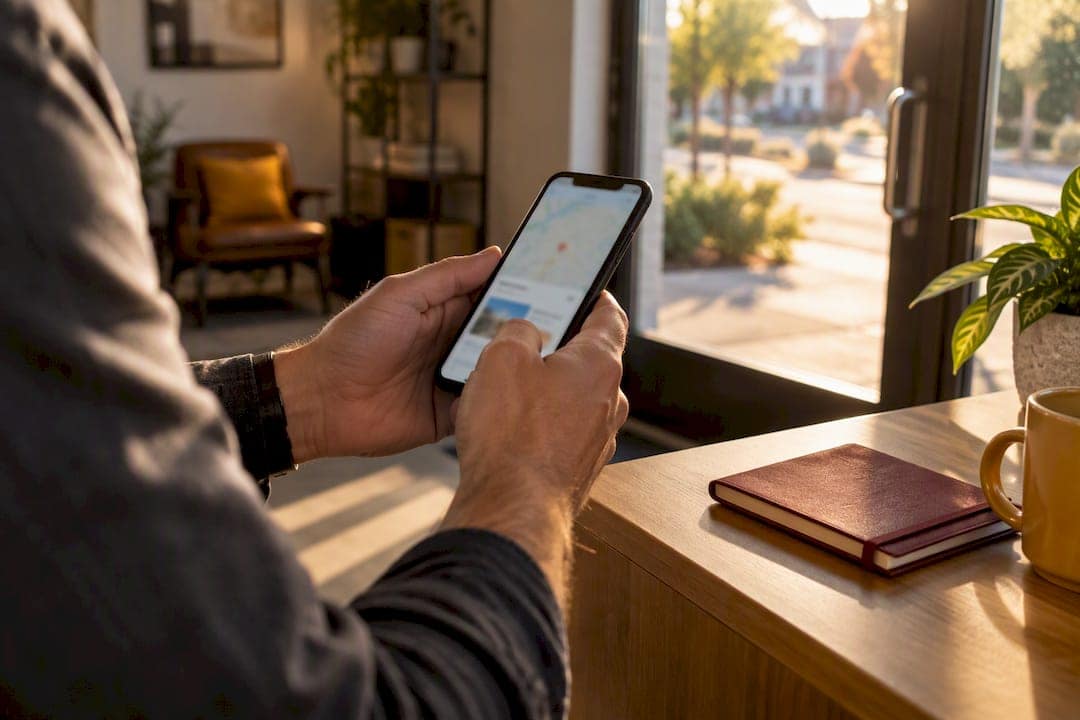
The fastest legitimate way to get Google reviews is to make the request frictionless and policy-compliant. Here is your immediate action checklist:
- Verify your Google Business Profile at Google Business Profile so customers can actually leave reviews and you can post replies.
- Grab your direct review link from the “Get more reviews” card in your Business Profile dashboard, then shorten it and save it somewhere accessible.
- Generate a QR code from that same link (desktop only) and save it as a high-resolution PNG for printing on receipts, invoices, and business cards.
- Ask at the right moment — right after a completed job, a successful delivery, or a resolved issue — and keep the ask to one sentence with a direct link.
- Automate follow-ups inside your CRM, booking system, or invoice tool, but personalize each message with the customer’s name and the service you performed.
- Reply to every review, positive or negative, quickly and in your own words.
- Never offer money, discounts, or gifts for reviews. Google explicitly prohibits incentives and classifies them as fake engagement, which can trigger penalties against your profile.
Pro Tip: Set a recurring 15-minute calendar block each week to reply to new reviews. Consistency matters more than perfection.
Key Takeaways
Getting more authentic Google reviews comes down to one principle: make the request automatic, the path frictionless, and the follow-through consistent.
| Point | Details |
|---|---|
| Verify your profile first | An unverified Google Business Profile cannot collect reviews or allow you to post replies. |
| Use a direct review link or QR | Generate both from your GBP dashboard; QR codes must be created on desktop and saved as a PNG. |
| Ask immediately after service | Timing the request within an hour of job completion produces the highest response rates. |
| Automate via CRM or booking tools | Embed the review link in post-service SMS, email, and invoice workflows so no ask gets missed. |
| Never offer incentives | Google prohibits rewards for reviews; violations can result in profile warnings or suspension. |
| Denvercountywebdesign | The agency sets up GBP optimization, review workflows, and local SEO for Colorado contractors. |
Table of Contents
- Why Google reviews matter for your local business
- How to set up your Google Business Profile and get your review link
- Where and when to ask customers for a Google review
- How to automate review requests without losing the personal touch
- How to respond to Google reviews — and handle the difficult ones
- What Google’s review policy actually prohibits
- How to monitor your review performance over time
- An agency perspective on what actually moves the needle
- Denvercountywebdesign can build your review system for you
- Sources
- FAQ
Why Google reviews matter for your local business
Reviews are not just social proof. They are an active ranking signal in Google Search and Google Maps. When someone searches “plumber near me” or “Denver electrician,” the local pack results that appear at the top are influenced by review count, average rating, and how recently reviews were posted. A profile with a high volume of reviews and a strong rating will almost always outrank a competitor with fewer reviews, because Google reads volume and recency as signals of an active, trusted business.
Beyond rankings, reviews drive conversion. A potential customer who lands on your Business Profile is deciding in seconds whether to call you or scroll past. A strong review count with visible, thoughtful replies tells them you are responsive and care about your work.
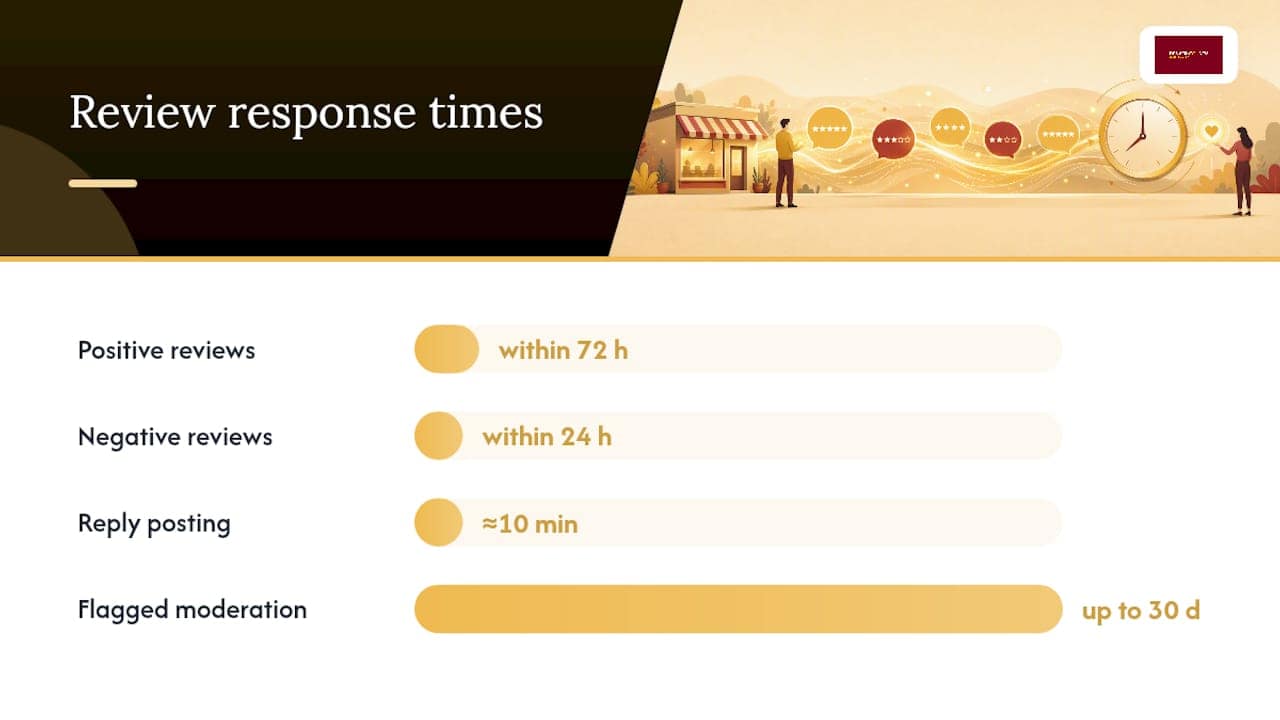
Response behavior is part of that signal. Google confirms that replies are reviewed for policy compliance and typically post within about 10 minutes, though some moderation checks can take up to 30 days. That means your replies are visible almost immediately, and every reply you post is a public demonstration of how you treat customers.
Key outcomes a strong review program delivers:
- Higher placement in Google’s local pack and Maps results
- More clicks from searchers who see your star rating in search results
- Increased call and booking rates from profile visitors
- A trust signal that complements your website and Google Ads
How to set up your Google Business Profile and get your review link
Before you can collect a single review, your profile needs to be verified. An unverified profile cannot receive reviews, and you cannot reply to any that slip through.
Step-by-step: verify and generate your review link
- Go to Google Business Profile and sign in with the Google Account you want to manage the profile from.
- Search for your business name. If it already exists, claim it. If not, create a new listing and fill in your business name, category, address, phone, and website.
- Complete verification. Google typically offers postcard, phone, or video verification depending on your business type. Follow the prompts until your profile shows “Verified.”
- Once verified, open your Business Profile dashboard and look for the “Get more reviews” card or button. Click it to reveal your unique review link.
- Copy the link and test it on both a desktop browser and a mobile device. It should open a Google review prompt directly.
- To generate a QR code, use the QR option inside the same Business Profile interface. This must be done on a desktop browser — mobile devices cannot generate the QR image through the GBP workflow.
- Save the QR code as a high-resolution PNG. Use this file for printing on receipts, business cards, invoices, and any signage in your service vehicle or office.
Pro Tip: Test your QR code with at least two different phone models before printing a batch. A QR that scans cleanly on an iPhone may behave differently on an Android device.
A few things to confirm before you distribute anything:
- The link opens a review prompt, not just your profile page.
- Customers who click it will be prompted to sign in to a Google Account if they are not already. Remind customers of this so they are not caught off guard.
- The QR code resolves to the same destination as the direct link.
For a broader walkthrough of the GBP setup process, the Google Business Profile setup guide covers configuration steps that apply across most business types.
Where and when to ask customers for a Google review
Timing is the single biggest variable in whether a customer follows through. Ask too early and the job is not finished. Ask too late and the moment has passed. The sweet spot is immediately after a positive interaction: the job is done, the customer expressed satisfaction, and the experience is fresh.

Channel-by-channel guidance
In person: Keep it short. A one-sentence ask works best: “If you’re happy with the work, a quick Google review would mean a lot to us — I can text you the link right now.” Hand them a business card with the QR code printed on the back.
SMS: Send within an hour of service completion. Example: “Hi [Name], thanks for choosing [Business]. If you have 60 seconds, a Google review helps us a lot: [link]” — that is the entire message. No paragraph, no pressure.
Email: A post-service thank-you email with a single call-to-action button labeled “Leave a Google Review” performs better than a buried link in a long message. Keep the email under five sentences.
Receipts and invoices: Add a line at the bottom: “Happy with our service? Leave us a review: [short link or QR].” This works especially well for trades businesses where the invoice is the last touchpoint.
Staff training: Train every team member to make the ask feel natural, not scripted. The key rules: never ask for a specific star rating, never offer anything in return, and never pressure a customer who seems hesitant. A simple, genuine ask is enough.
Embedding the review link in standard business processes, rather than asking customers to search for your profile manually, is what Google itself recommends for reducing friction. One click from the message to the review prompt is the goal.
How to automate review requests without losing the personal touch
Once you have the link and the timing figured out, the next step is removing yourself from the equation. Manual asks work, but they depend on whoever is on-site that day remembering to do it. Automation makes the process consistent.
Most CRM platforms, booking systems, and invoicing tools let you trigger a post-service email or SMS automatically when a job is marked complete. Drop your review link into that message template and you have a review request that goes out every time, without anyone having to remember.
A few practical integration points:
- Booking software (like ServiceTitan, Jobber, or Housecall Pro): set a trigger to send a review request SMS 1–2 hours after a job is closed.
- Email platforms (like Mailchimp or ActiveCampaign): build a simple one-email automation that fires when a contact’s status changes to “completed.”
- Invoice tools (like QuickBooks or FreshBooks): add the review link to your invoice footer template so it goes out with every payment confirmation.
For businesses managing multiple locations, the Google Business Profile API offers a more technical route. The accounts.locations.reviews.list method returns paginated review data including reviews[], averageRating, totalReviewCount, and nextPageToken. It requires verified locations and proper OAuth scopes. The developer tutorial covers how to list, retrieve, reply to, and delete review replies programmatically, including batch operations across locations — a real time-saver if you are auditing reviews across five or more profiles.
Compliance checklist for automated messages:
- Include the customer’s first name and the service performed.
- Send during business hours (9 AM–7 PM local time).
- Include a clear opt-out option for SMS messages.
- Never phrase the request as “leave us a 5-star review” — ask for an honest review only.
How to respond to Google reviews — and handle the difficult ones
Responding to reviews is not optional if you want the full benefit of your review program. It signals to Google that your profile is active, and it signals to potential customers that you are attentive.
For positive reviews: Respond within 72 hours. Thank the customer by name, reference the specific service, and keep it under three sentences. Avoid copy-pasting the same reply to every review — Google’s moderation systems flag templated responses, and it reads as impersonal to anyone scanning your profile.
For negative reviews: Respond within 24 hours. The structure that works: thank them for the feedback, acknowledge the issue without admitting fault where it is genuinely disputed, and offer to resolve it offline. Example: “Thank you for letting us know, [Name]. We’re sorry the experience didn’t meet your expectations. Please call us at [number] so we can make it right.” Never argue publicly.
For fake or policy-violating reviews: Do not respond with accusations. Instead:
- Reply neutrally if appropriate: “We don’t have a record of this service. Please contact us directly so we can look into this.”
- Flag the review via your Business Profile dashboard using the “Report a problem” option.
- Document the review with a screenshot, the date, and any evidence that the reviewer was not a customer.
- Follow up with Google support if the review is not removed within 30 days.
Google’s guidance notes that replies typically post within about 10 minutes, but some moderation checks take up to 30 days — so patience is required when a flagged review stays visible longer than expected.
What Google’s review policy actually prohibits
Google’s rules are clear, and the consequences for violating them are real. Here is what to avoid:
- Incentivized reviews: Offering discounts, free services, gift cards, or any other reward in exchange for a review is prohibited. Google classifies this as fake engagement and it can trigger penalties including review removal, profile warnings, or suspension.
- Asking for only positive reviews: Directing customers to leave only 5-star reviews, or filtering customers before asking (only sending requests to those who said they were happy), violates Google’s policy.
- Identical replies: Posting the same templated reply across many reviews can be flagged.
- Asking reviewers to change their rating publicly: If you resolve a complaint, you can let the customer know privately, but publicly asking them to update their review is against policy.
Google’s official guidance states: “Don’t offer or accept money, products, or services to write reviews for your business or write negative reviews about a competitor. Reviews that are not based on a genuine experience, or that are posted just to manipulate a place’s rating, are not allowed.” Violations can result in review removal, profile warnings, or suspension of your Business Profile.
The safest approach is to ask every customer, every time, for an honest review — and let the volume of genuine feedback build your reputation naturally.
How to monitor your review performance over time
Tracking your review program tells you what is working and where to push harder. The Google Business Profile dashboard gives you the basics without any technical setup.
Key metrics to watch:
- Total review count: Your baseline. Track it monthly.
- Average rating: Aim to stay above 4.0; below 3.5 is a conversion problem.
- Review velocity: New reviews per month. A steady flow matters more than a one-time spike.
- Response rate: What percentage of reviews you have replied to. Aim for 100%.
- Review recency: When your most recent review was posted. A profile with no new reviews in six months looks inactive.
| Metric | Where to find it | Why it matters |
|---|---|---|
| Total review count | GBP dashboard / API totalReviewCount |
Baseline volume and trust signal |
| Average rating | GBP dashboard / API averageRating |
Conversion and ranking factor |
| Review velocity | Manual count or API pagination | Shows program momentum |
| Response rate | GBP dashboard reply history | Signals profile activity to Google |
| Review recency | GBP dashboard “Reviews” tab | Freshness signal for local rankings |
For businesses scaling across locations, the Business Profile API returns averageRating and totalReviewCount fields directly. Build your KPIs around both absolute counts and velocity — new reviews per 30 or 90 days — so a single outlier review does not skew your read on how the program is performing.
A simple reporting cadence: check the dashboard weekly, pull a monthly summary of velocity and response rate, and do a quarterly audit of your oldest unanswered reviews.
An agency perspective on what actually moves the needle
Most small business owners I work with underestimate one thing: the gap between asking and receiving a review is almost entirely a friction problem, not a motivation problem. Customers who had a great experience genuinely want to help you. They just forget, or the process feels like too many steps.
The businesses that build strong review profiles consistently are not the ones with the best service. They are the ones who made the ask automatic and the path to leaving a review exactly one tap long. A plumber who texts a review link within an hour of finishing a job will outpace a competitor with better work but no follow-up system — every time.
There is also a tendency to over-engineer the response strategy. Personalization matters, but a 200-word reply to a 5-star review is not better than a 30-word one. What Google and your future customers actually want to see is that you responded, you used the customer’s name, and you referenced the job. That is it. Variety in structure, brevity in length, and consistency in timing are the three levers that actually work.
For contractors and home service businesses specifically, reviews feed directly into local lead generation — a strong review profile amplifies the return on every dollar you spend on Google Ads and local SEO. It is not a separate initiative. It is the foundation everything else builds on.
Denvercountywebdesign can build your review system for you
Getting reviews consistently requires a system, not just good intentions. Denvercountywebdesign builds that system for home service businesses and contractors across Colorado — from verifying and optimizing your Google Business Profile to setting up automated review request workflows that run without you having to think about them. The agency’s local SEO packages include Google Business Profile management, review workflow setup, and the kind of technical SEO that makes your profile and website work together to generate booked jobs, not just clicks.
If you want to know exactly where your profile stands right now, start with a free map-pack audit. You will get a clear picture of your current review performance, local ranking gaps, and the specific steps that will move the needle fastest for your business.
Sources
- Tips to get more reviews – Google Business Profile Help
- Review data — Google My Business (developer tutorial)
FAQ
How much does it cost to get Google reviews?
Getting Google reviews through your Business Profile is free. You create a review link and QR code at no cost inside the GBP dashboard, and there are no fees to reply to reviews or use the basic dashboard metrics.
How do I see the reviews customers have left for my business?
Sign in to your Google Business Profile at business.google.com, then select “Reviews” from the left-hand menu. All reviews, including star ratings and written comments, appear there, and you can reply directly from the same screen.
How do I generate Google reviews for free without violating policy?
Share your direct review link via SMS, email, receipts, or a printed QR code immediately after a completed service. Ask for an honest review, keep the message short, and never offer any reward in exchange — Google prohibits incentives and can penalize profiles that use them.
How can a customer leave a Google review for my business?
A customer clicks your direct review link or scans your QR code, signs in to their Google Account if prompted, selects a star rating, and optionally adds a written comment. Providing the direct link removes the need for them to search for your business manually, which is the single biggest friction point.